
Getting a License File for LMS
Download and Install LMS
Download LMS from below URL and install:
https://gofile.me/48l9w/ZePa9uYGl
You can get file password from me through email or MS Teams.
Getting a Detached License
Step 1
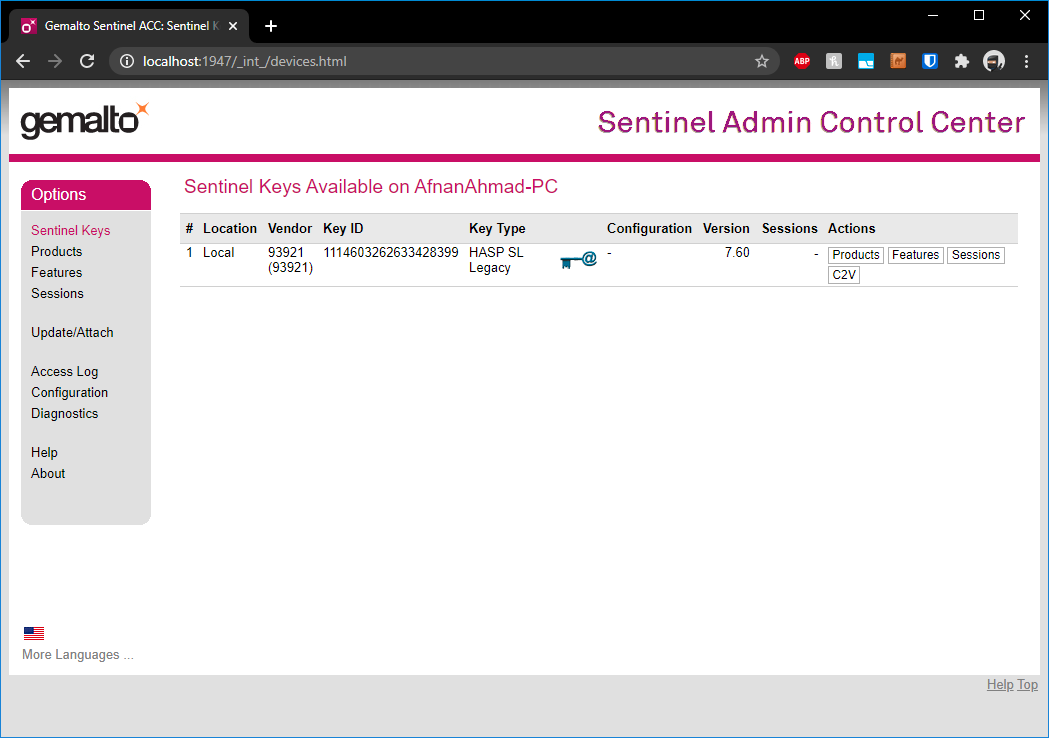
Open the Sentinel HASP Admin Control Center (http://localhost:1947/)
Step 2
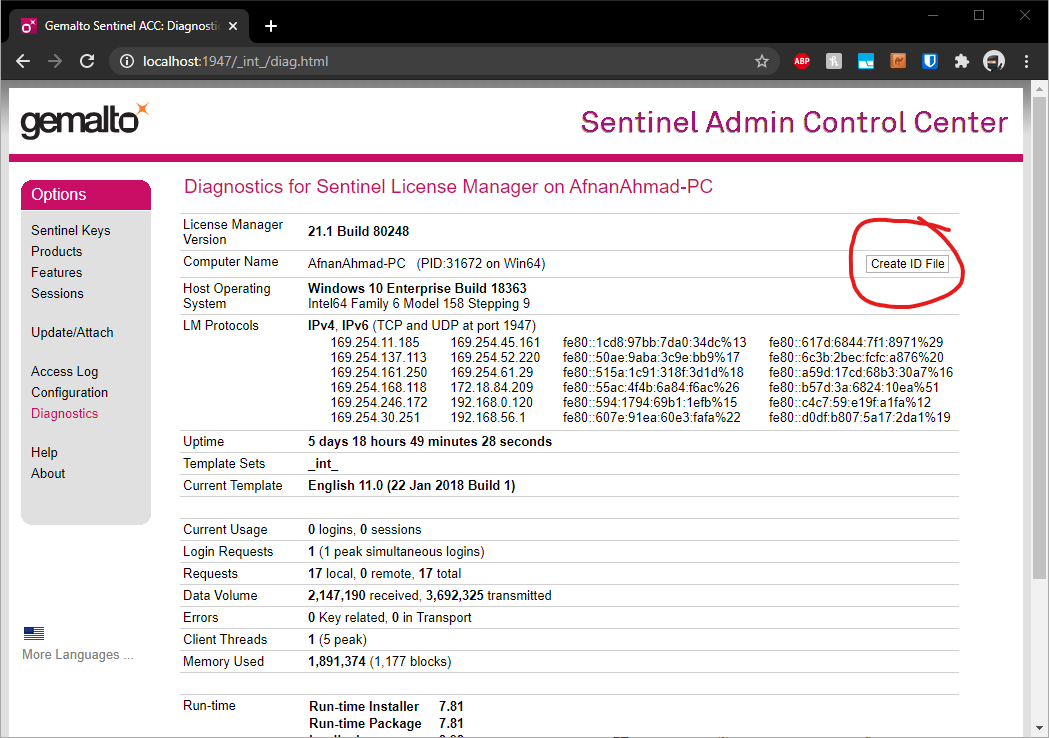
Create a file containing the machine identity by clicking Create File ID in the Diagnostics page of the HASP License Manager on your machine.
Step 3
Upload your ID file on below URL. I will create a detached license and share an H2R with you.
https://pse312-nas.eng.yorku.ca:5001/sharing/1tEiPTU5e
Step 4
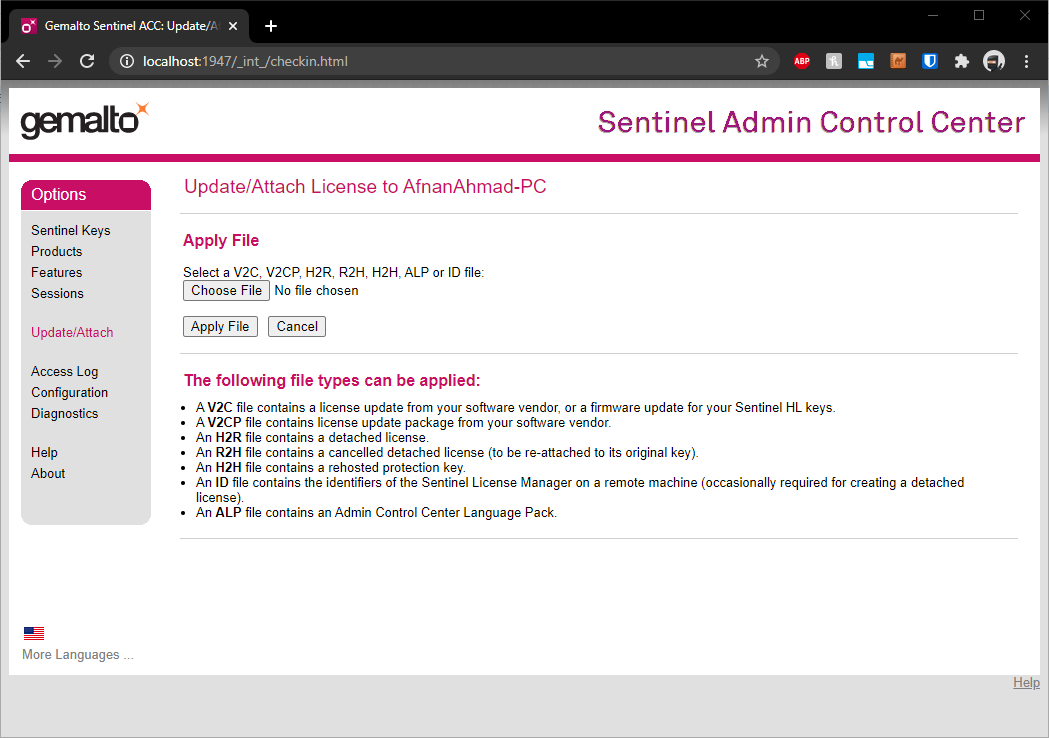
On the Update/Attach panel, hit the Browse button and select the file detached license file (H2R file). And hit Apply File.
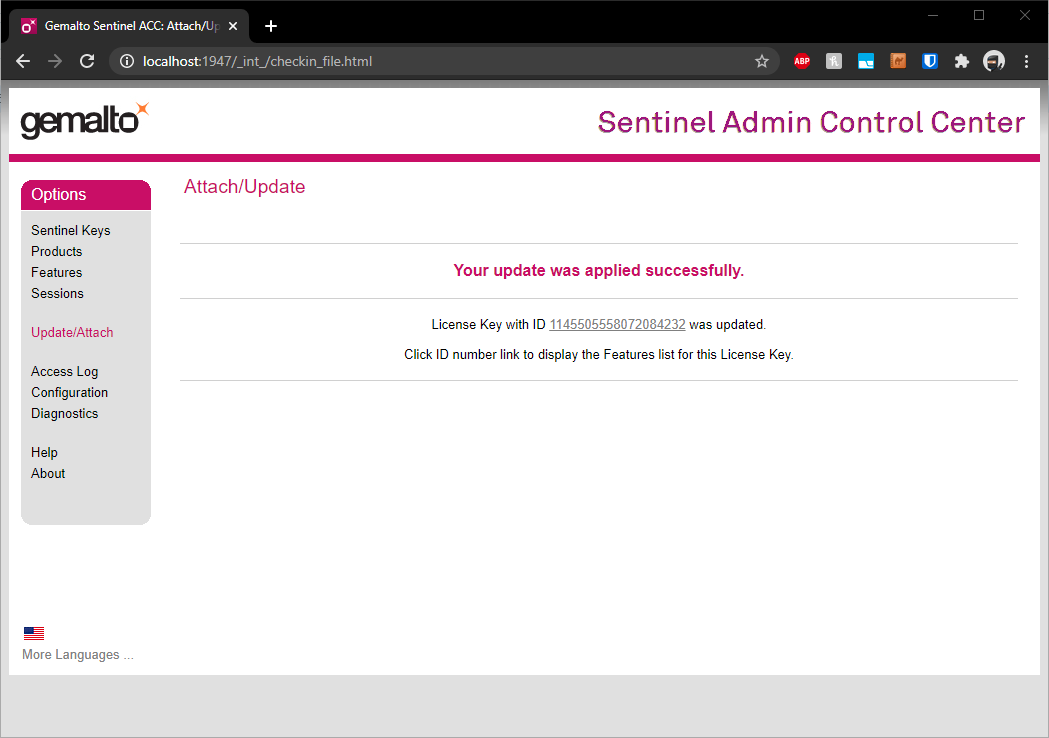
If succeeded you will see message like this.
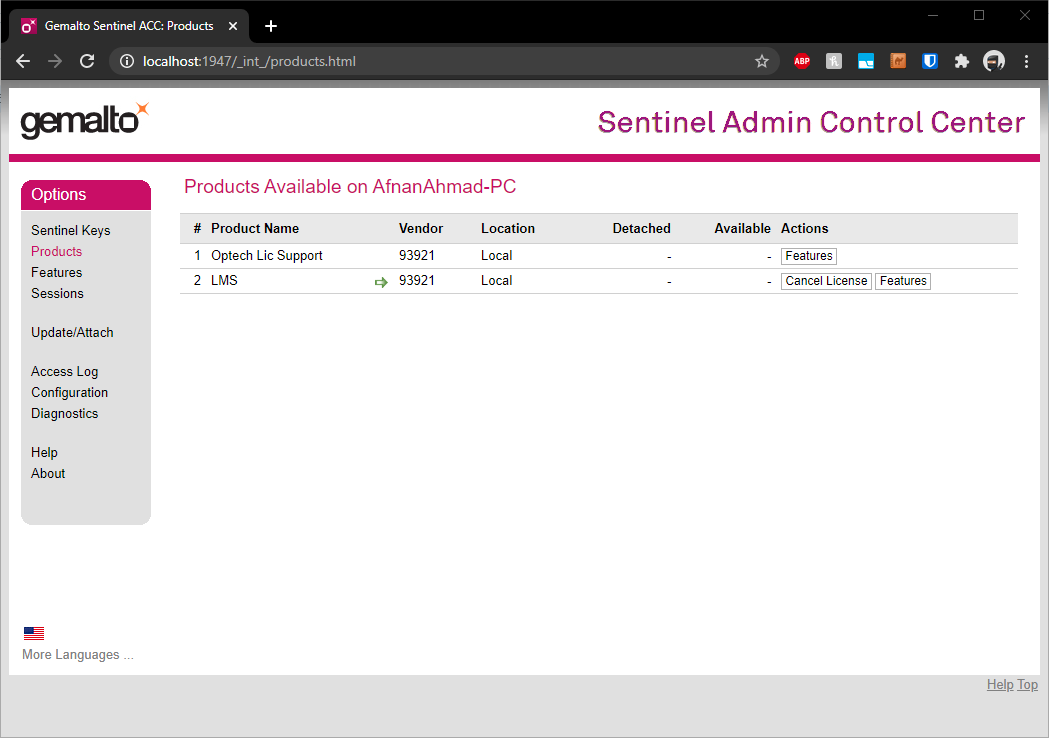
Then you can see LMS in the Products panel. After this you can run your LMS program and it should work as intended.
No Comments